

Troubleshooting Published Landing Pages
A landing page worked in preview but not once it went live. Here is a diagnostic order, the usual causes and the checks that find them quickly.

The page looked right in the builder and the preview. A campaign email went out, and now people report a blank section, an old headline or a form that does nothing when they press submit. Published pages fail in different ways from drafts because the live version is served to anonymous visitors, through a site, a domain and often a cache. Diagnosing them is quicker if you check in a fixed order.
What changes between preview and live
In Marketing Cloud Next, landing pages are published to a Salesforce site and served to visitors who are not logged in. Three things are different from your preview:
- Who is viewing. Anonymous visitors use the site's guest user, which has much narrower access than you do as an admin.
- What version is served. Only published changes are live, and caching can keep an older version visible for a while.
- Where it is served from. A custom domain, its certificate and any security policies on the site all sit between the visitor and the page.
Most problems fall into one of these three.
Symptoms, likely causes and first checks
| Likely cause | First check | |
|---|---|---|
| Old content still showing | Changes not published, or cached | Confirm publish status, then load in a private window |
| Blank section or component | Guest user cannot read the data it needs | Test as guest and review guest access settings |
| Page not found | Wrong URL path or site not active | Compare the URL with the site's published URL |
| Certificate warning | Custom domain not fully set up | Check domain and certificate status with your DNS owner |
| Form does nothing on submit | Flow error or blocked script | Browser console and flow error emails |
| Form submits but no record | Flow runs but create fails | Flow fault path, validation rules |
| Embedded content missing | Resource blocked by security policy | Console errors mentioning content security policy |
| Tracking parameters lost | Hidden fields not populated | Inspect hidden field values on the live page |
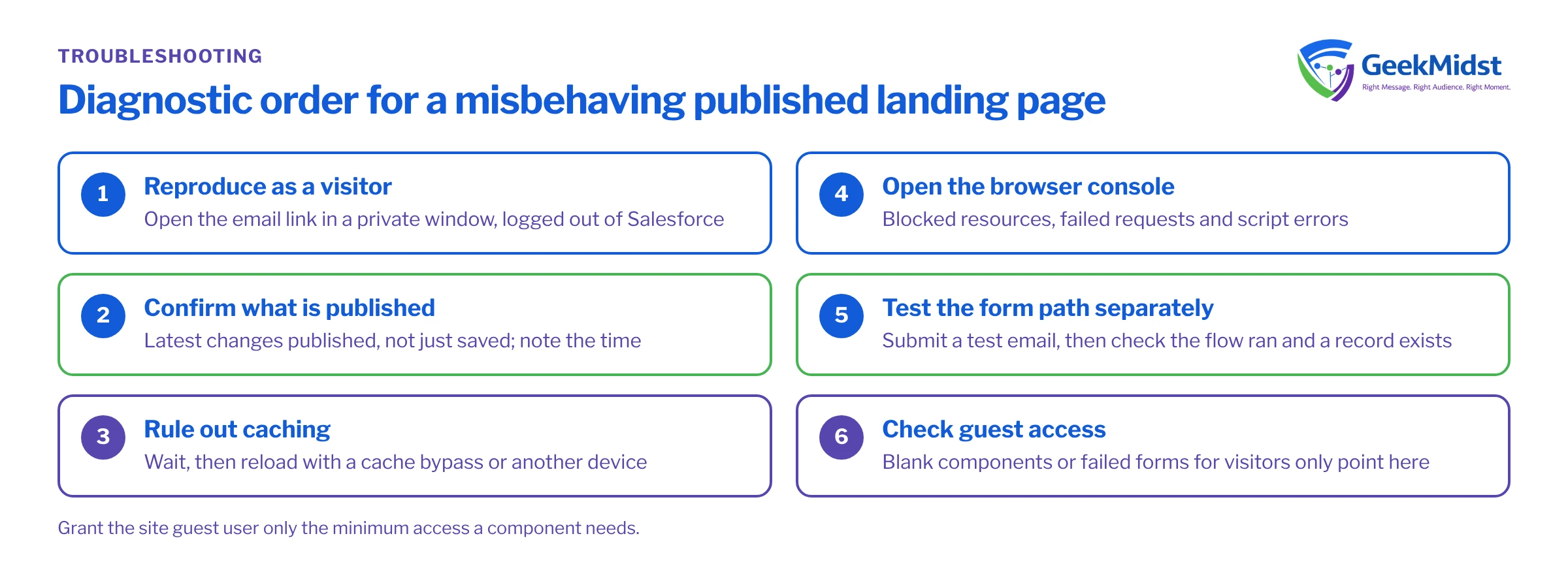
A diagnostic order that saves time
- 01
Reproduce as a visitor
Open the exact URL from the email in a private browser window, logged out of Salesforce. If you only test while logged in, you are not seeing what visitors see.
- 02
Confirm what is published
Check that your latest changes were published, not just saved. Note the time of the last publish.
- 03
Rule out caching
Wait a few minutes, then reload with a cache bypass, or test from a different network or device.
- 04
Open the browser console
Look for red errors: blocked resources, failed network requests and script errors. Note the status codes of failed requests.
- 05
Test the form path separately
Submit with a test email you control, then check whether the flow ran and whether a record was created.
- 06
Check guest access
If components are blank or the form fails only for visitors, review what the site guest user can access.
Checking hidden fields and tracking values
Campaign and UTM values often go missing between the email link and the form. The snippet below, run in the browser console on the live page, shows the query parameters the page received and the hidden inputs it found. It is a diagnostic aid, not something to deploy.
Before you start: open the page from a real test email link so the URL carries the same parameters visitors see, and assume nothing about field names until you have inspected them.
// Paste into the browser console on the published page
const params = new URLSearchParams(window.location.search);
console.table(Object.fromEntries(params.entries()));

document.querySelectorAll('input[type="hidden"]').forEach((el) => {
  console.log(el.name ? el.name : el.id, '=', el.value);
});If the parameters are present in the URL but the hidden fields are empty, the page is not mapping them. If the parameters are missing from the URL, check the link in the email, including any link tracking that wraps or rewrites it.
Problems that look like page issues but are not
The form flow fails. A submit that shows an error, or appears to succeed but produces no record, is usually a flow problem. Validation rules on Lead, missing required fields and a guest context that cannot see existing records are the common causes. How Forms and Flows Connect to CRM Records walks through that path.
Consent banner blocks scripts. If your site uses a cookie consent banner, analytics and some embedded scripts may only load after consent. That is correct behaviour, but it means testing with consent both given and refused.
Personalised content is blank. Content that depends on who the visitor is cannot be shown to an anonymous visitor unless something identifies them. Design a sensible default for unknown visitors.
Common mistakes
- Testing only in the builder preview while logged in as an admin.
- Republishing repeatedly to "fix" a cache delay, which makes it harder to know which version is live.
- Granting the guest user broad object access to make a component appear. Give it the minimum it needs and nothing more.
- Changing the page URL after emails have been sent, which breaks every link already in an inbox.
- Not testing on a phone, where many campaign visitors arrive.
Pre-launch checklist for each page
- Opened from a test email in a private window on desktop and mobile.
- Form submitted with a new and an existing test email, records checked.
- Browser console free of errors.
- Hidden campaign and UTM fields populated.
- Page reviewed with cookie consent accepted and declined.
- Unsubscribe and privacy links resolve.
For a structured run-through before launch, the Journey QA Checklist covers the email side too. If pages are part of a wider Marketing Cloud Next build, see our Marketing Cloud Next Implementation service.
Live page still misbehaving?
Send us the URL and a description of what visitors see. We can trace the problem through the site, the guest user and the form flow.


