

Using Data Views for Engagement Reporting
How to turn Marketing Cloud system data views into reliable engagement reports, with correct join keys, unique counts, journey attribution and a history that outlasts retention.

Standard tracking screens answer "how did this email do?" but not "how engaged is each segment over the last quarter?" or "which journey step drives clicks?". For those questions most teams query the system data views in Marketing Cloud Engagement. They are powerful, but easy to misread: a wrong join double-counts, opens are inflated by privacy features, and the data only goes back so far.
Before you start
Data views are read-only system tables that you query with SQL in a Query Activity in Automation Studio. You cannot open them directly in Contact Builder, so every result goes into a target data extension you create first. In a child business unit, some account-wide views are referenced with an ent. prefix (for example ent._Subscribers); check which applies in your account structure. The examples use 30-day windows to keep queries fast.
The data views you will use most
| What one row represents | Key fields for joins | |
|---|---|---|
| _Sent | One email sent to one subscriber in one job | JobID, ListID, BatchID, SubscriberID, SubscriberKey, EventDate |
| _Open | One open event; IsUnique marks the first | JobID, ListID, BatchID, SubscriberID, IsUnique |
| _Click | One click on a tracked link | JobID, ListID, BatchID, SubscriberID, URL, LinkName, IsUnique |
| _Bounce | One bounce, with category and SMTP reason | JobID, ListID, BatchID, SubscriberID, BounceCategory |
| _Unsubscribe and _Complaint | One unsubscribe or reported complaint | JobID, ListID, BatchID, SubscriberID |
| _Job | One send job, with email name and delivery time | JobID, EmailName, DeliveredTime |
| _Journey and _JourneyActivity | Journey versions and their activities | VersionID, JourneyActivityObjectID |
Joining correctly
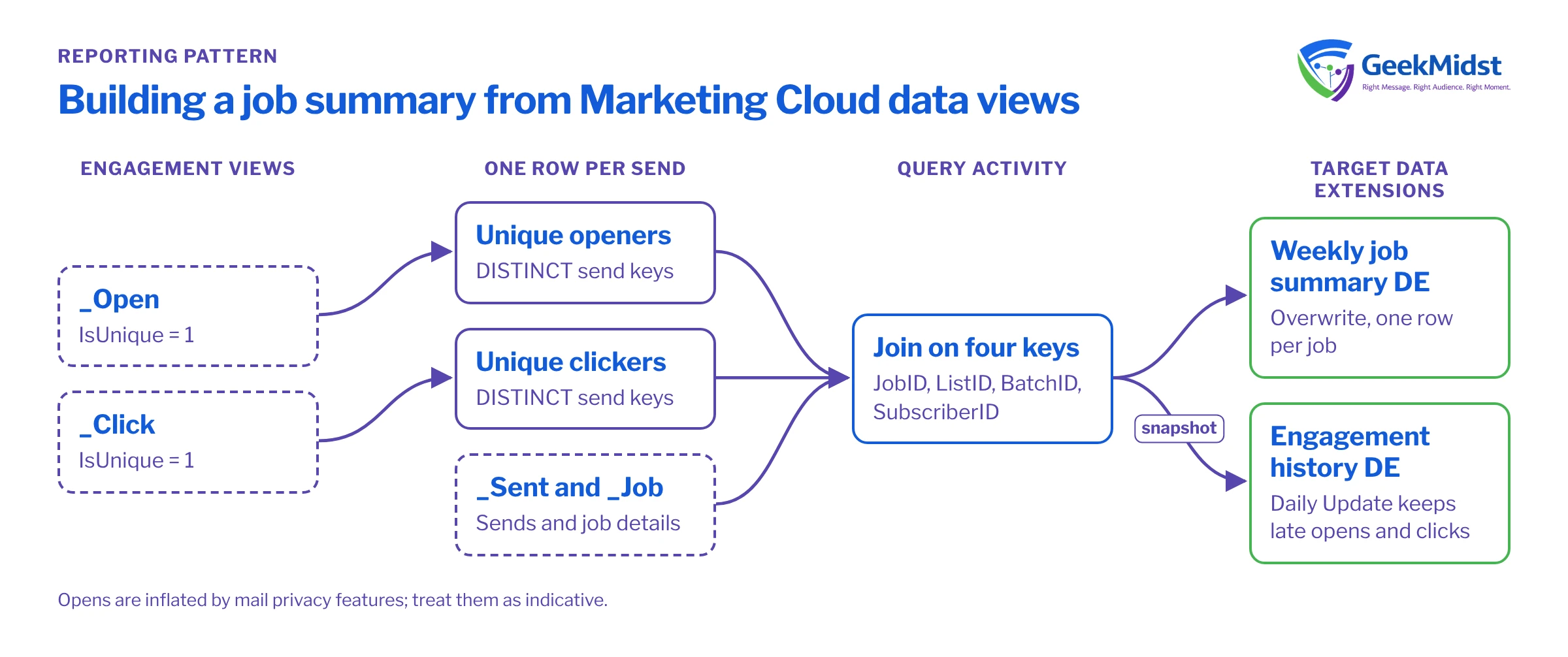
An individual send is identified by four fields together: JobID, ListID, BatchID and SubscriberID. Join engagement views to _Sent on all four. Joining on SubscriberKey alone links a subscriber's opens from one email to their sends of another and inflates every rate.
Two more rules prevent most reporting errors:
- Use
IsUnique = 1for unique opens and unique clicks. Without it, a subscriber who opens five times counts five times. - Pre-aggregate before joining. Joining
_Sentto both_Openand_Clickat row level multiplies rows (every open times every click). Reduce each view to one row per send first, then join.
Worked example: a weekly job summary
The query below returns sends, unique openers and unique clickers per job delivered in the last seven days. Each engagement view is reduced to distinct sends before the join.
SELECT
    j.JobID,
    j.EmailName,
    CAST(j.DeliveredTime AS DATE) AS SendDate,
    COUNT(*) AS Sent,
    SUM(CASE WHEN o.SubscriberID IS NOT NULL THEN 1 ELSE 0 END) AS UniqueOpeners,
    SUM(CASE WHEN c.SubscriberID IS NOT NULL THEN 1 ELSE 0 END) AS UniqueClickers
FROM _Job j
INNER JOIN _Sent s
    ON s.JobID = j.JobID
LEFT JOIN (
    SELECT DISTINCT JobID, ListID, BatchID, SubscriberID
    FROM _Open
    WHERE IsUnique = 1 AND EventDate >= DATEADD(DAY, -14, GETDATE())
) o ON o.JobID = s.JobID AND o.ListID = s.ListID
   AND o.BatchID = s.BatchID AND o.SubscriberID = s.SubscriberID
LEFT JOIN (
    SELECT DISTINCT JobID, ListID, BatchID, SubscriberID
    FROM _Click
    WHERE IsUnique = 1 AND EventDate >= DATEADD(DAY, -14, GETDATE())
) c ON c.JobID = s.JobID AND c.ListID = s.ListID
   AND c.BatchID = s.BatchID AND c.SubscriberID = s.SubscriberID
WHERE j.DeliveredTime >= DATEADD(DAY, -7, GETDATE())
GROUP BY j.JobID, j.EmailName, CAST(j.DeliveredTime AS DATE)The engagement subqueries look back 14 days so that opens and clicks on emails sent near the start of the 7-day window are still counted. Rates are calculated afterwards, in your reporting tool or a second query, so that you can recalculate them with different definitions without re-reading the data views.
Reporting by journey and activity
Journey sends appear in _Sent like any other send. The field TriggererSendDefinitionObjectID links each send to _JourneyActivity.JourneyActivityObjectID, and _JourneyActivity.VersionID links to _Journey. That gives you sends per journey, version and email activity.
SELECT
    jy.JourneyName,
    jy.VersionNumber,
    ja.ActivityName,
    COUNT(*) AS Sent
FROM _Sent s
INNER JOIN _JourneyActivity ja
    ON ja.JourneyActivityObjectID = s.TriggererSendDefinitionObjectID
INNER JOIN _Journey jy
    ON jy.VersionID = ja.VersionID
WHERE s.EventDate >= DATEADD(DAY, -30, GETDATE())
GROUP BY jy.JourneyName, jy.VersionNumber, ja.ActivityNameInterpreting opens honestly
Mail privacy features in some clients load images automatically, which records an open whether or not the person read the email. Unique open rates are therefore inflated and uneven across audiences. Use clicks, conversions and unsubscribes as primary engagement signals, and treat opens as a rough indicator of deliverability rather than interest. The guide to measuring marketing automation honestly covers holdouts and baselines.
Building a history that outlasts retention
A simple pattern works for most teams. Create a Send_Engagement_History_DE with one row per job, keyed on JobID, holding the counts from the weekly summary above plus a SnapshotDate. Schedule a daily automation that recalculates the last 14 days of jobs and writes them with the Update action, so late opens and clicks are picked up while older rows stay frozen once they leave the window. Add the business unit name if you report across units.
Keep definitions in one place. Write down what "sent", "unique clicker" and "engaged subscriber" mean for your reports, which data views each comes from and which filters apply. When two dashboards disagree, that document is usually where the answer is.
Common mistakes
- Joining engagement to sends on
SubscriberKeyorJobIDalone. - Forgetting
IsUnique = 1, then reporting total opens as unique opens. - Joining opens and clicks at row level and counting inflated rows.
- Using
EventDatewindows that cut off engagement from emails sent near the window edge. - Relying on data views for long-term trends without snapshots.
- Comparing business units without checking which views are business unit-level and which are account-wide.
Checklist
- Target data extensions created with the right types and keys
- Joins use JobID, ListID, BatchID and SubscriberID together
- Unique counts filtered with IsUnique
- Engagement pre-aggregated before joining
- Snapshots scheduled for history beyond the retention window
- Opens labelled as indicative in every report
For a hands-off setup, see marketing analytics and reporting, and keep the Marketing Cloud SQL cheat sheet nearby.
Need reporting you can trust?
We can design the queries, snapshot tables and definitions behind your engagement reporting so numbers are consistent from one month to the next.


