

AMPscript LookupRows vs LookupOrderedRows
When to use each function, how to loop the rowset safely, and how to keep lookups fast at send time.

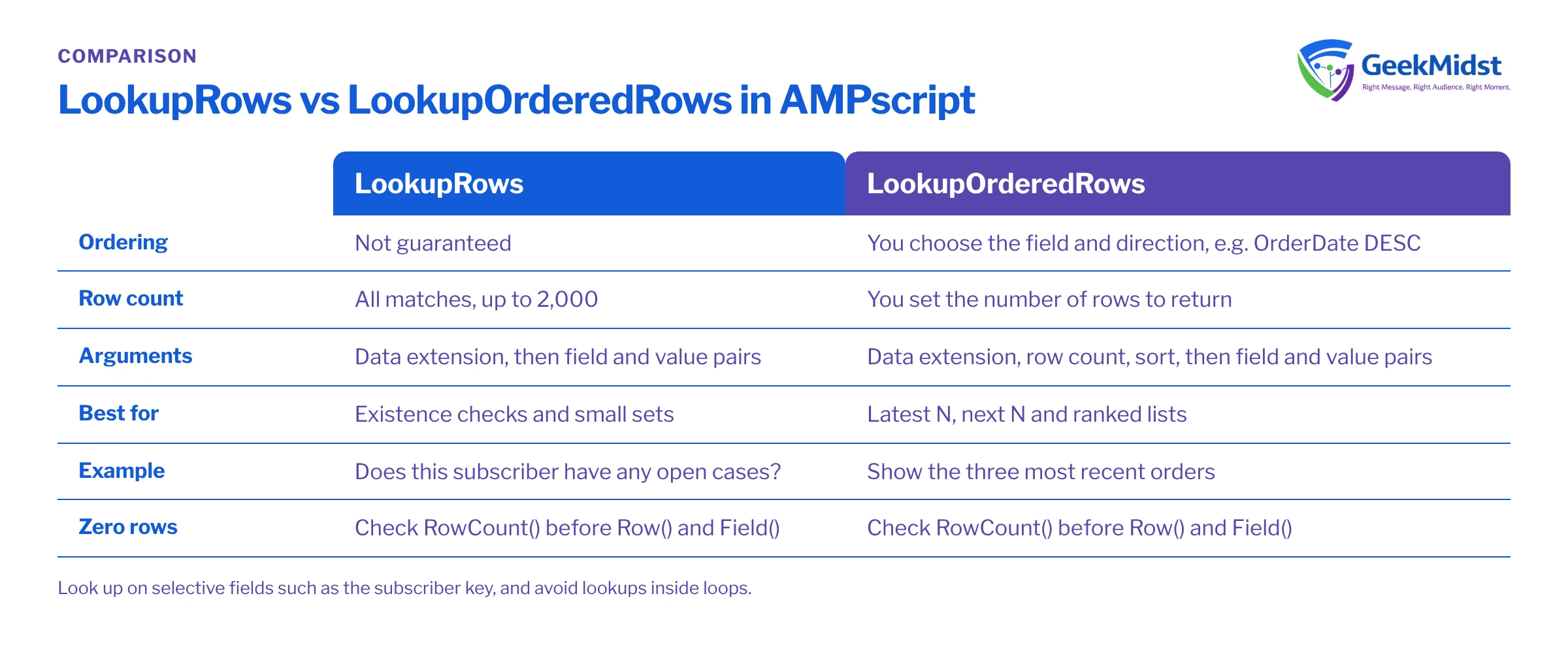
Both functions return a rowset from a data extension that you can loop through with RowCount, Row and Field. The difference is control: LookupRows returns matching rows with no guaranteed order, while LookupOrderedRows lets you set how many rows to return and how to sort them.
LookupRows
Use it when you need all matching rows and order does not matter — for example, checking whether a subscriber has any open cases. It returns a maximum of 2,000 rows, so it is not a way to read an entire large data extension.
The syntax is LookupRows(dataExtension, field, value). You can add further field and value pairs, and a row must match all of them to be returned.
%%[
SET @key  = AttributeValue("_subscriberkey")
SET @rows = LookupRows("Open_Cases", "SubscriberKey", @key)

IF RowCount(@rows) > 0 THEN
  SET @hasOpenCase = "true"
ELSE
  SET @hasOpenCase = "false"
ENDIF
]%%LookupOrderedRows
Use it when order matters — the three most recent orders, the next upcoming appointment. The second argument is the number of rows to return and the third is the sort, written as a field name followed by ASC or DESC.
As with LookupRows, you can pass more than one field and value pair after the sort argument; every pair must match.
%%[
SET @key  = AttributeValue("_subscriberkey")
SET @rows = LookupOrderedRows("Orders", 3, "OrderDate DESC", "SubscriberKey", @key)
SET @n    = RowCount(@rows)

IF @n > 0 THEN
  FOR @i = 1 TO @n DO
    SET @row  = Row(@rows, @i)
    SET @id   = Field(@row, "OrderID")
    SET @date = FormatDate(Field(@row, "OrderDate"), "dd MMM yyyy")
]%%
  <p>Order %%=v(@id)=%% · %%=v(@date)=%%</p>
%%[
  NEXT @i
ELSE
]%%
  <p>No recent orders yet.</p>
%%[ ENDIF ]%%Quick comparison
| LookupRows | LookupOrderedRows | |
|---|---|---|
| Ordering | Not guaranteed | You choose field and direction |
| Row count | All matches, up to 2,000 | You set the number to return |
| Best for | Existence checks, small sets | Latest N, next N, ranked lists |
Filtering on more than one field
Both functions accept additional field and value pairs. This is usually better than fetching every row for a subscriber and discarding most of them in a loop.
%%[
SET @key  = AttributeValue("_subscriberkey")
SET @rows = LookupOrderedRows("Orders", 5, "OrderDate DESC", "SubscriberKey", @key, "Status", "Open")
]%%Performance tips
- Look up on fields that uniquely or selectively identify rows (usually the subscriber key) and keep the data extension as narrow as you can.
- Avoid lookups inside loops where one lookup with a better filter would do.
- If every email needs the same heavy join, consider pre-computing it with a SQL query activity in Automation Studio — see common SQL query errors.
- Always handle the zero-row case so emails render cleanly for subscribers without data.
Common mistakes
- Assuming
LookupRowsreturns rows in a useful order. It may appear consistent in testing, but nothing guarantees it. If the order matters to what the customer sees, useLookupOrderedRows. - Calling
Row()without checkingRowCount(). Requesting a row that does not exist raises an error, and in a triggered or journey send that can mean the email is not sent to that subscriber. Check the count first, as both examples above do. - Misspelling the sort field. The sort string must use a real field name from the data extension. A typo is not necessarily caught when you save the content, so preview carefully.
- Using the wrong data extension name. Lookups use the data extension name, not its external key. Check the name exactly, including spaces and underscores.
- Mixed text case in values. Standard lookups are not case-sensitive. If you need exact case matching, there are case-sensitive variants (
LookupRowsCS,LookupOrderedRowsCS). - Formatting raw dates. Dates are returned as stored. Use
FormatDate(orFormat) to display them, and remember that a blank date field needs handling before formatting.
Which one should I use?
If you only need to know whether something exists, or you need every matching row from a small set, use LookupRows. If you need a specific number of rows in a specific order, use LookupOrderedRows. If you need a single value from a single row, the simpler Lookup function is usually clearer than either.
For exact limits and argument rules, check the AMPscript function reference in Salesforce Help, as details can change between releases.
Testing
Preview with subscribers who have zero, one and many matching rows, and send tests to a seed list before activating any journey.
A short pre-launch checklist:
- The lookup field is populated for every subscriber who can receive the email
- The zero-row branch renders sensibly
- The sort field and direction give the order the copy promises ("most recent", "next")
- Dates and currency are formatted for the audience's locale
- Test sends cover at least one subscriber with more rows than you display


