

Building a Preference Centre with CloudPages
A step-by-step guide to a custom Marketing Cloud preference centre on CloudPages, from secure subscriber identification to saving choices and handling unsubscribes.

The default subscription centre in Marketing Cloud Engagement works, but it rarely matches your brand or the way you actually segment communications. A custom preference centre on CloudPages lets people choose topics and frequency in your language. It also becomes part of your consent record, so it has to identify people correctly, save exactly what they chose and never make it harder to unsubscribe.
Before you start
You will need a CloudPages landing page, a data extension Preferences_DE with SubscriberKey (Text, primary key), News and Offers (Text, length 1, holding Y or N) and ModifiedDate (Date). Names are samples. Build in a test business unit or on an unpublished page, and agree with your privacy or legal team which choices you offer and how they map to consent records.
Decide where each preference lives
Not every choice belongs in the same place. Get this right before writing any code.
Where preference data usually belongs
| Typical storage | Notes | |
|---|---|---|
| Global opt-out from all commercial email | All Subscribers status | Must be honoured by every send; never only a data extension flag |
| Topic choices (news, offers, events) | Preferences data extension or publication lists | Data extension is flexible; publication lists are enforced at send time |
| Frequency (weekly, monthly digest) | Preferences data extension | Read by queries and journey splits |
| Channel consent (SMS, WhatsApp) | Channel-specific subscription records | Consent rules differ per channel and country |
| Source of truth for CRM users | Salesforce consent objects or fields | Sync back so sales and service see the same choices |
Identifying the subscriber securely
Link to the preference centre from your emails with CloudPagesURL(), for example %%=RedirectTo(CloudPagesURL(1234))=%% where 1234 is your page ID. The function builds an encrypted query string, so the page knows who the subscriber is through _subscriberkey without exposing the key in the URL.
Never accept a plain subscriber key or email address as a URL parameter. Anyone could change it and edit another person's preferences.
The page code
The block below reads the subscriber, saves a submitted form, then loads current values to pre-tick the checkboxes. The form posts back to the same URL using RequestParameter('PAGEURL'), which keeps the encrypted query string and therefore the subscriber context.
%%[
VAR @subKey, @news, @offers, @rows, @row, @message
SET @subKey = _subscriberkey
SET @message = ""

IF Empty(@subKey) THEN
  SET @message = "We could not identify your profile. Please use the link in one of our recent emails."
ELSE
  IF RequestParameter("submitted") == "1" THEN
    /* Accept only the values we expect */
    SET @news = IIF(RequestParameter("news") == "Y", "Y", "N")
    SET @offers = IIF(RequestParameter("offers") == "Y", "Y", "N")
    UpsertData("Preferences_DE", 1, "SubscriberKey", @subKey,
               "News", @news, "Offers", @offers, "ModifiedDate", Now())
    SET @message = "Thanks, your preferences have been saved."
  ENDIF

  SET @rows = LookupRows("Preferences_DE", "SubscriberKey", @subKey)
  IF RowCount(@rows) > 0 THEN
    SET @row = Row(@rows, 1)
    SET @news = Field(@row, "News")
    SET @offers = Field(@row, "Offers")
  ENDIF
ENDIF
]%%
<p>%%=v(@message)=%%</p>
%%[ IF NOT Empty(@subKey) THEN ]%%
<form method="post" action="%%=RequestParameter('PAGEURL')=%%">
  <input type="hidden" name="submitted" value="1">
  <label><input type="checkbox" name="news" value="Y" %%=IIF(@news == "Y", "checked", "")=%%> Monthly newsletter</label>
  <label><input type="checkbox" name="offers" value="Y" %%=IIF(@offers == "Y", "checked", "")=%%> Offers and promotions</label>
  <button type="submit">Save my preferences</button>
</form>
%%[ ENDIF ]%%How the code behaves
- An unchecked checkbox sends nothing, so
RequestParameter("news")is empty and theIIFstoresN. Only the exact valueYis accepted, which stops arbitrary input reaching the data extension. UpsertData()is the function for CloudPages. In emails, the equivalent isUpsertDE(); mixing them up is a common error.- Values are read back after saving, so the page always shows what is stored, not just what was submitted.
- If the page is opened without subscriber context (for example a forwarded or bookmarked link that has lost its query string), the form is hidden and the person is told how to get back.
Unsubscribes and the global opt-out
Topic preferences are not the same as unsubscribing. Offer a clear "unsubscribe from all marketing email" option on the page, and make sure it changes the subscriber's status in All Subscribers or the relevant publication list, not just a data extension field. Marketing Cloud provides AMPscript and API methods for logging unsubscribes; follow the documented approach in Salesforce Help and test it in a non-production business unit.
If you use Marketing Cloud Connect, decide how preference changes reach CRM so sales and service see the same choices. The consent synchronisation blueprint describes one approach, and the self-service preference centre blueprint shows how the page fits into a wider design. For syntax reminders, keep the AMPscript cheat sheet open while you build.
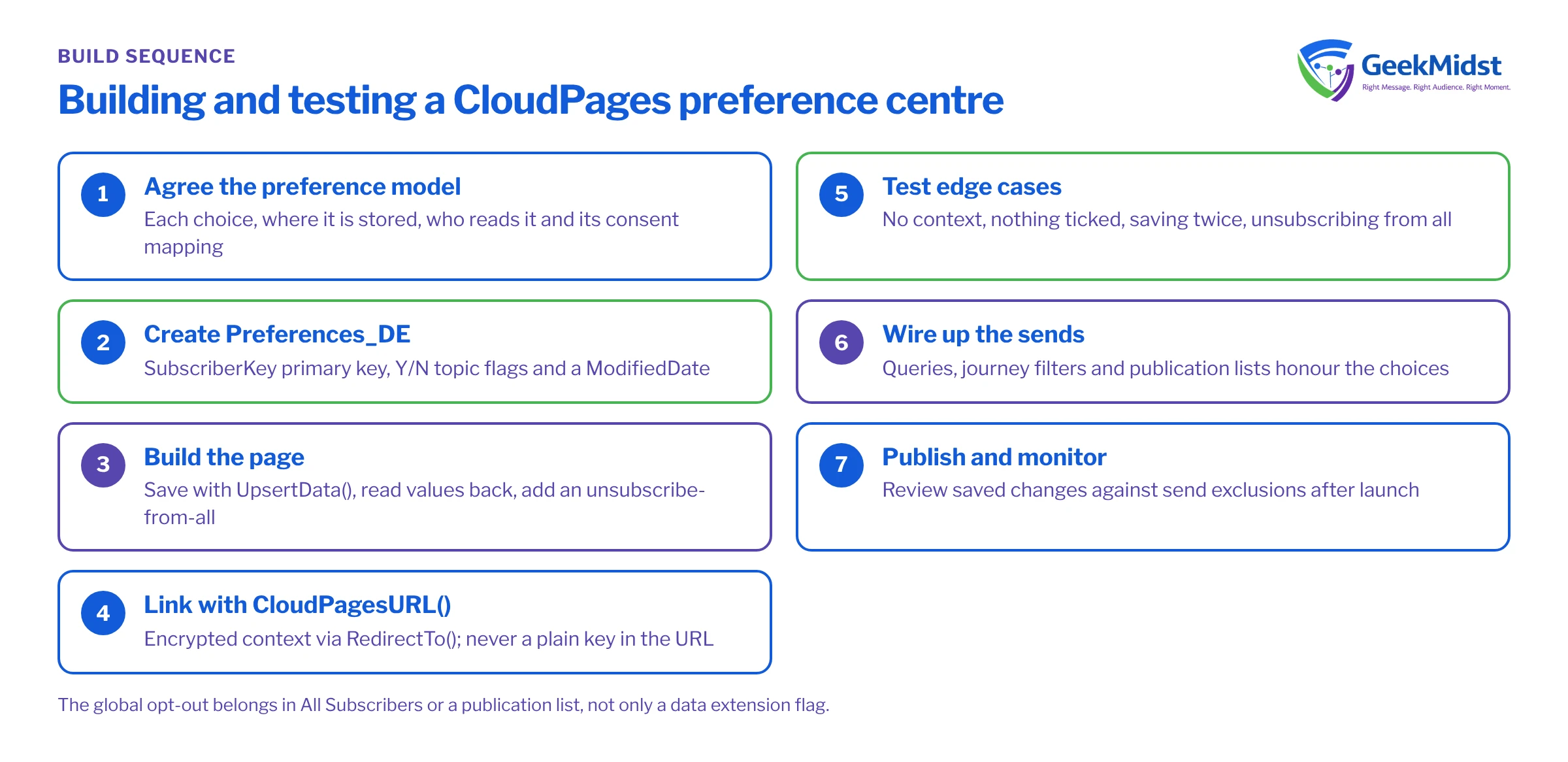
Build and test sequence
- 01
Agree the preference model
List each choice, where it is stored, who reads it and how it maps to consent records.
- 02
Create the data extension
Set keys, types and retention. Add ModifiedDate so you can audit changes.
- 03
Build the page
Start from the code above, add your design, accessible labels and an unsubscribe-from-all option.
- 04
Link it from a test email
Use CloudPagesURL() with RedirectTo() and send to seed subscribers.
- 05
Test edge cases
Opening without context, saving with nothing ticked, saving twice, and unsubscribing from all.
- 06
Wire up the sends
Update queries, journey filters and publication lists so every send honours the stored choices.
- 07
Publish and monitor
Check the data extension after launch and review a sample of changes against send exclusions.
Questions we hear
Can I use a Smart Capture form instead of AMPscript?
Should preferences live in publication lists or a data extension?
How do I handle people who reach the page without a valid link?
Does this work with Marketing Cloud Next?
Planning a preference centre?
We can help you design the preference model, build the CloudPage and connect it to your sends and CRM so choices are honoured everywhere.


