

Monitoring Data Cloud Jobs and Refresh Schedules
Every Data Cloud audience depends on a chain of scheduled jobs. How to check each stage, plan a refresh timeline and catch failures before a campaign does.

A segment publishes on time, the activation succeeds, and the campaign still reaches the wrong people because the data stream behind it failed two days ago. In Data Cloud (now branded Data 360), every downstream result depends on a chain of jobs that run on their own schedules. Monitoring Data Cloud jobs and refresh schedules is about knowing that chain, checking each link and timing it so fresh data actually reaches the audience.
The chain you are monitoring
Data usually moves through these stages: ingestion through data streams into Data Lake Objects, optional data transforms, mapping to Data Model Objects, identity resolution into unified profiles, calculated insights, segment publishing and finally activation to a target such as Marketing Cloud. For a refresher on the first layers, see DLO vs DMO.
Each stage has its own status, history and schedule options, and what is available depends on the connector, the feature and your org's release. Check the exact settings for your org in Salesforce Help rather than relying on a fixed list.
What to check at each stage
| What can go wrong | What to check | |
|---|---|---|
| Data streams | Source file missing, credentials expired, schema changed | Last run status and records processed against what you expected |
| Data transforms | Failed run, or logic dropping rows | Run history and output row counts against input |
| Identity resolution | Ruleset has not run since new data arrived | Last run time, unified profile count trend, changes in match rates |
| Calculated insights | Stale or failed calculation | Last successful run and a sanity check on value ranges |
| Segments | Published before upstream data refreshed | Publish time and population trend |
| Activations | Target rejected records or a field mapping broke | Activation status and record counts at the target |
Freshness is a timeline, not a setting
Each job runs on its own schedule. A segment set to publish at 06:00 does not wait for an identity resolution run that starts at 05:30 and takes an hour. If you need stages to run in order, you have to design for it: space schedules with buffers, use any orchestration your org supports, or trigger later steps from a process that checks upstream completion.
Start from the business requirement. "The morning email must use yesterday's orders" gives you a deadline to work backwards from. Then measure how long each stage actually takes with real volumes before setting any schedule.
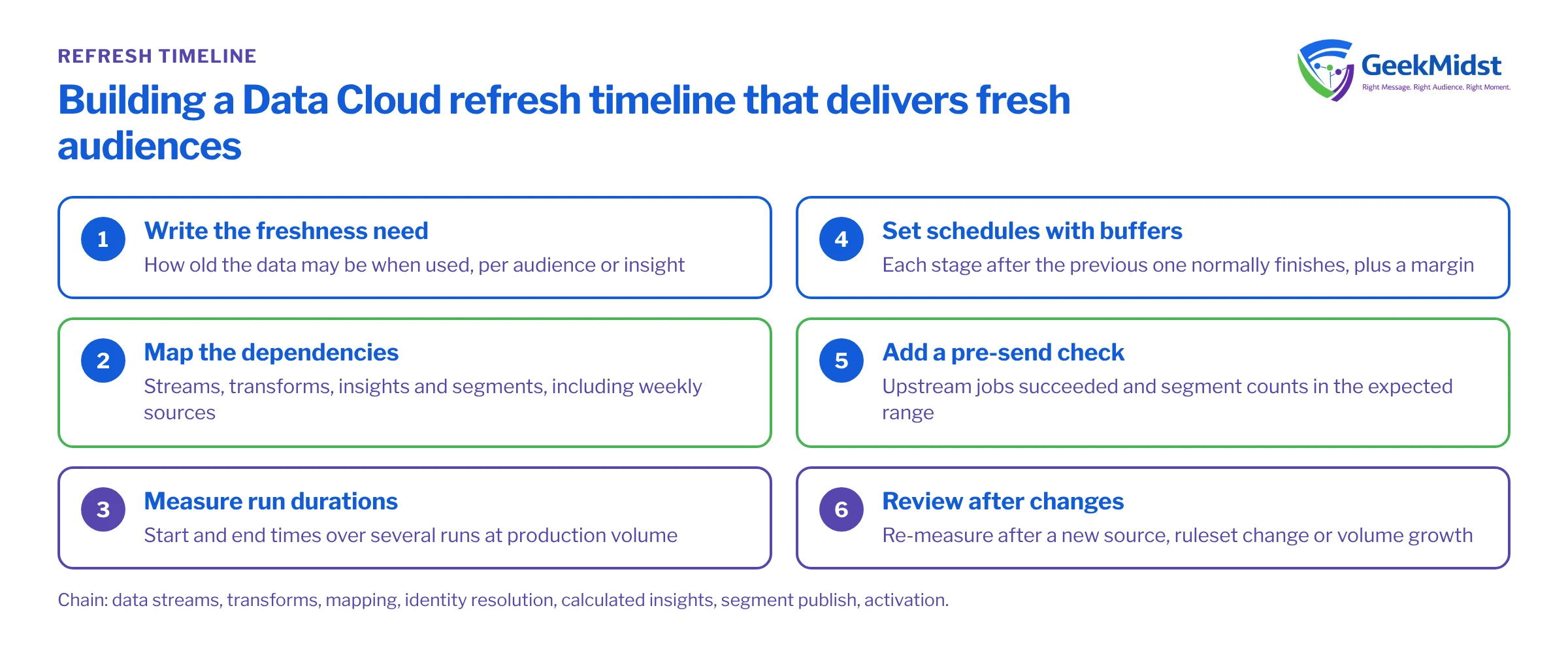
Building a refresh timeline
- 01
Write down the freshness requirement
For each audience or insight, state how old the data may be when it is used, for example orders up to midnight by the 08:00 send.
- 02
Map the dependencies
List every data stream, transform, insight and segment the audience relies on, including sources that only refresh weekly.
- 03
Measure run durations
Record start and end times over several runs at production volume. Durations grow with data, so note the trend.
- 04
Set schedules with buffers
Schedule each stage after the previous one normally finishes, with a margin for slow days. A few well-timed runs beat frequent runs that overlap.
- 05
Add a pre-send check
Before a high-stakes send, confirm upstream jobs succeeded and segment counts sit in the expected range.
- 06
Review after changes
Re-measure when you add a source, change a ruleset or grow volume significantly.
Check counts, not just statuses
A job can report success and still be wrong: an upstream system sends an empty file, or a transform filter removes most rows. Compare row counts over time. Data Cloud's query tooling lets you run SQL against DLOs and DMOs, and the example below counts orders per day in a sample DLO so that a sudden drop stands out.
SELECT CAST(OrderDate__c AS DATE) AS order_day,
       COUNT(*) AS row_count
FROM Web_Orders__dll
GROUP BY CAST(OrderDate__c AS DATE)
ORDER BY order_day DESC
LIMIT 14Common mistakes and how to diagnose them
- Only watching the last step. A successful activation tells you nothing about the data it carried.
- Schedules set once and forgotten. Volumes grow and runs take longer until they overlap. Review durations every quarter.
- Silent schema changes. A source system renames a column and the field arrives empty. Agree a change process with source owners and spot-check key fields after their releases.
- Expired credentials. Connector credentials and keys expire on their own timetable. Keep an owner and an expiry date for each.
- Running jobs more often than needed. Data Cloud is consumption-based, so extra runs cost credits and can collide with other jobs. Too few runs leave new customers without profiles. Match frequency to how fast the data changes.
- Nobody owns monitoring. Name a person or team for the daily check and an escalation path.
When diagnosing, work upstream from the symptom: activation, segment, insight, identity resolution, mapping, stream. The first stage where counts or timestamps look wrong is usually where the problem started.
Daily monitoring checklist
- Every data stream shows a successful latest run with record counts in the normal range.
- Transforms and identity resolution ran after the latest ingestion.
- Key calculated insights refreshed within their expected window.
- Segment populations are within the expected range.
- Activations completed and target counts match.
Related reading: Data Cloud segmentation and activation troubleshooting, Choosing data stream ingestion patterns, and our Salesforce Data Cloud consulting service.
Questions we hear
Can we get an alert when a data stream fails?
How often should identity resolution run?
Why did our segment count drop overnight?
Does a faster refresh always help?
Get your Data Cloud pipeline under control
We can map your Data Cloud dependencies, measure run times and set up a refresh timeline and monitoring routine that your team can own.


