

Fixing Prospect Sync Errors with Salesforce
Most sync errors come from a small set of causes on the Salesforce side. Here is how to read them, fix the root cause and stop them coming back.

A prospect fills in a form, scores well, and never appears in Salesforce. Or the lead exists, but its score, grade and campaign stay blank. Sync errors between Account Engagement and Salesforce are rarely mysterious once you know where to look, and in most orgs the cause sits on the Salesforce side: a rule, a permission or a duplicate that blocks the connector's update.
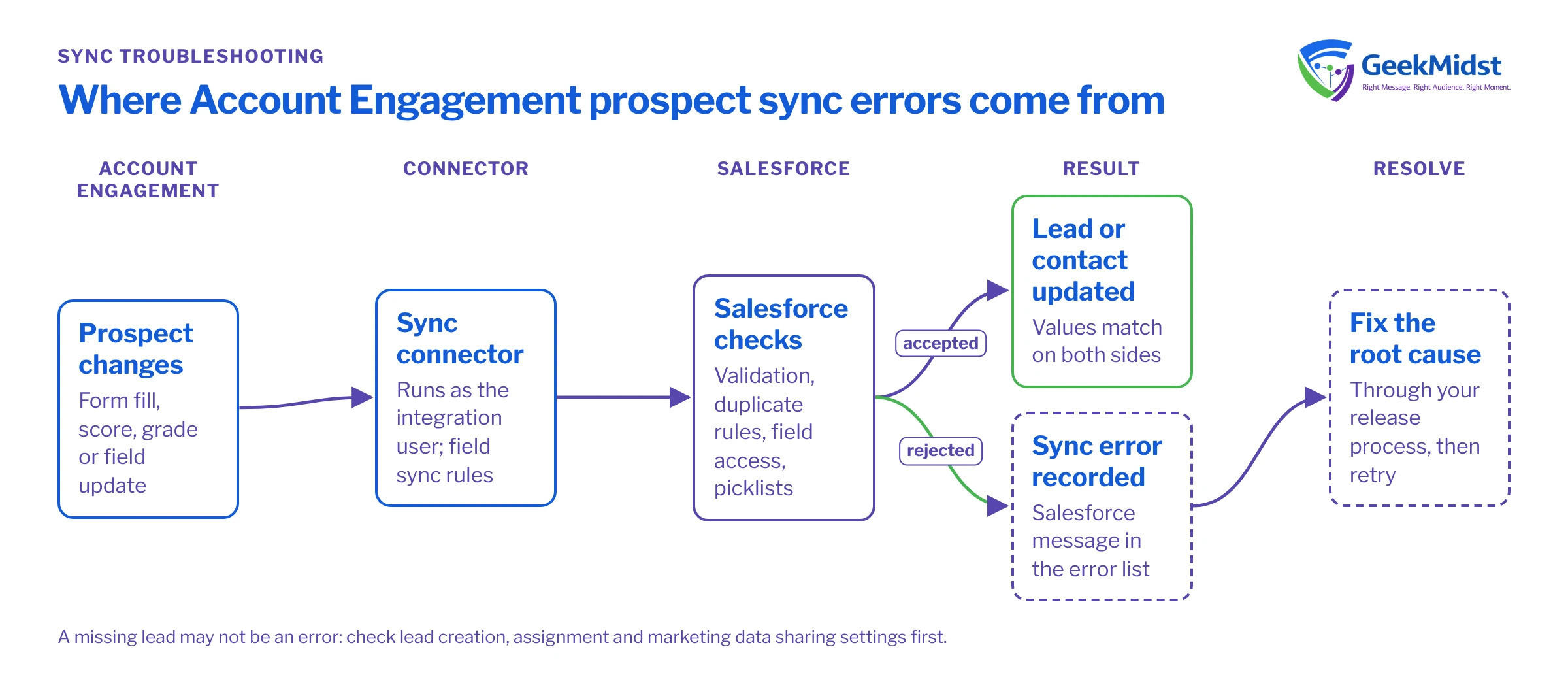
How the sync works, briefly
The Account Engagement connector runs as a dedicated integration user in Salesforce. When a prospect or a synced lead or contact changes, the connector tries to update the other side. Field-level sync behaviour decides which value wins for each mapped field: Salesforce's value, Account Engagement's value, or the most recently updated value. Prospects are not always created in Salesforce immediately; depending on your connector settings, a lead may only be created when the prospect is assigned or meets other criteria.
When an update is rejected, Account Engagement records a sync error with the message Salesforce returned. The error list in your connector settings is the starting point for any investigation. Fixing the cause and then retrying, or simply waiting for the next change on the record, will usually clear it.
Common errors, causes and fixes
| Symptom or message | Likely cause | Fix |
|---|---|---|
| FIELD_CUSTOM_VALIDATION_EXCEPTION | A validation rule on Lead or Contact rejects the connector's update | Exempt the integration user with a custom permission, or make the rule tolerate marketing-created records |
| INVALID_OR_NULL_FOR_RESTRICTED_PICKLIST | Account Engagement sends a value not in a restricted picklist | Align the picklist values on both sides, or map the form field to the same values |
| DUPLICATES_DETECTED | A Salesforce duplicate rule blocks the create or update | Review duplicate rules for the integration user; allow with alert or fix the source data |
| Field not updating, no error shown | Sync behaviour set so the other side wins, or the field is not mapped | Check the field's sync behaviour and mapping in Account Engagement |
| INSUFFICIENT_ACCESS_OR_READONLY or field permission errors | The integration user lacks object or field access | Grant the required object and field-level access through a permission set |
| STRING_TOO_LONG | A value exceeds the Salesforce field length | Increase the field length or truncate on capture |
| Prospect has no CRM record | Not yet assigned or not eligible under connector settings | Review lead creation and assignment settings and marketing data sharing rules |
Before you start
The fixes below assume you have System Administrator access in a sandbox connected to a sandbox Account Engagement business unit, or that you can make metadata changes in production through your normal release process. Do not edit validation rules directly in production to make an error go away.
Validation rules: the most common cause
Validation rules written for sales users often require fields that a marketing form never collects, such as Industry or Lead Source detail. When the connector creates or updates the record, the rule fires and the update fails.
The cleanest fix is a custom permission, for example Bypass_Marketing_Validation, assigned to the integration user through a permission set. Then add NOT($Permission.Bypass_Marketing_Validation) inside the rule's formula, combined with your existing conditions using AND(). This keeps the rule in force for people while letting the connector write partial records. Review with your data owners whether those partial records need enrichment later.
Duplicates and record matching
Duplicate rules can block the connector from creating a lead that matches an existing lead or contact. Before changing the rules, check whether the duplicates are real. A quick aggregate query shows how widespread the problem is:
SELECT Email, COUNT(Id) leadCount
FROM Lead
WHERE IsConverted = false
AND Email != null
GROUP BY Email
HAVING COUNT(Id) > 1
ORDER BY COUNT(Id) DESC
LIMIT 100If the list is long, the sync errors are a symptom of a data quality problem that needs a merge exercise, not a rule change. Also check whether the same person exists as both a lead and a contact. Account Engagement matches prospects to CRM records by CRM ID where it can, so one email address can legitimately relate to more than one prospect in some configurations. Understand your matching settings before merging anything.
Field-level sync behaviour
When a field silently refuses to update, look at its sync behaviour before anything else. If it is set to use Salesforce's value, changes made in Account Engagement will be overwritten on the next sync. Score and grade fields should flow from Account Engagement, and ownership fields usually from Salesforce. Document the intended direction for every mapped field so future changes do not reintroduce the problem.
Integration user permissions
The connector can only write what its user can write. After adding a new custom field, it is easy to forget field-level security for the integration user, which leads to errors or to values that simply never appear. Use a permission set dedicated to the connector so access changes are visible and deployable.
A repeatable diagnosis routine
- 01
Read the error text
Open the sync error list in your connector settings and group errors by message. A handful of messages usually account for most errors.
- 02
Reproduce on one record
Pick a single failing prospect and the matching Salesforce record. Try the same update as the integration user in a sandbox to see the exact rule or permission involved.
- 03
Fix the root cause
Adjust the validation rule, permission set, duplicate rule or picklist through your normal release process rather than editing production directly.
- 04
Retry and confirm
Retry the failed records or trigger a change, then check that the error clears and the values appear on both sides.
- 05
Prevent recurrence
Add connector checks to your release testing so new rules and fields are tested with the integration user before deployment.
Prevention checklist
- A dedicated permission set for the integration user, reviewed whenever fields are added
- Validation rules that respect a marketing bypass custom permission
- Restricted picklists aligned with form and import values
- A documented sync direction for every mapped field
- Sync error review as part of weekly admin routines
- Connector scenarios included in your release testing checklist
For the bigger picture of keeping CRM and marketing data aligned, see Salesforce CRM and marketing data synchronisation. If errors keep recurring across releases, an org health check often finds the underlying rule and permission sprawl. Current connector behaviour and settings are documented in Salesforce Help.
Questions we hear
Will sync errors clear on their own?
Should I give the integration user System Administrator access?
Why does a prospect have no lead in Salesforce?
Can I pause the connector while I fix things?
Sync errors piling up?
We can trace your recurring errors to their root causes and fix the rules, permissions and mappings behind them through a proper release process.


