

Change Sets, Salesforce CLI or DevOps Center?
Change sets, the Salesforce CLI and DevOps Center each suit a different team and stage of maturity. Here is how they differ and how to choose without stalling delivery.

Many Salesforce teams start with change sets because they are built in and need no tooling. Then the org grows, two admins overwrite each other's changes, a deployment fails because a field was missed, and nobody can say what production looked like last Tuesday. The question becomes not whether to change the deployment approach but which step to take next.
This guide compares the three options most teams consider: change sets, source-driven deployments with the Salesforce CLI, and DevOps Center.
Change sets
Change sets move metadata between orgs connected to the same production org. You build an outbound change set in the source org by selecting components, upload it, and deploy the inbound change set in the target, optionally validating first.
Strengths: no setup, no tools to install, familiar to admins, and they respect deployment connections you control in Setup.
Limits: there is no version history, so you cannot see or restore what changed. Selecting components by hand makes it easy to miss dependencies. Change sets cannot delete components; removals must be done manually or through the Metadata API. Each target org needs its own upload, and change sets only work between related orgs.
Salesforce CLI and source-driven development
The Salesforce CLI (sf, the successor to the older sfdx commands) works with metadata as source files in a project. Your source of truth becomes a Git repository rather than an org. Developers retrieve and deploy with commands, scratch orgs or sandboxes with source tracking show what changed, and deployments can run in a CI pipeline.
Typical commands include sf project retrieve start, sf project deploy start and sf project deploy validate, which runs a check-only deployment with tests so you can quick-deploy the validated result later. Deletions are handled with destructive changes manifests. Unlocked packages add a further option for splitting an org into versioned modules.
Strengths: full history, code review through pull requests, repeatable automated deployments, and support for most metadata types (check the Metadata Coverage Report for gaps).
Limits: it needs Git skills, a branching strategy and someone to own the pipeline. Admins who do not use the command line need another way in.
{
  "packageDirectories": [
    { "path": "force-app", "default": true }
  ],
  "name": "example-org",
  "namespace": "",
  "sfdcLoginUrl": "https://login.salesforce.com",
  "sourceApiVersion": "62.0"
}DevOps Center
DevOps Center is Salesforce's own interface for source-driven change management. It sits on top of the same source format and a Git repository, but presents work items, a pipeline of stages (for example development, integration, UAT and production) and promotion buttons instead of commands. Admins and developers can work in the same pipeline: admins make changes in their sandbox and DevOps Center commits them; developers can keep using the CLI and an IDE against the same repository.
Strengths: version control and a defined pipeline without asking every admin to learn Git commands, visible status of each change, and a path towards CI for teams that want it later.
Limits: it depends on a supported Git provider, it covers a defined set of workflows and metadata, and teams with complex branching or packaging may outgrow it. Check Salesforce Help for current Git provider support, metadata coverage and setup requirements.
Side by side
| Change sets | Salesforce CLI | DevOps Center | |
|---|---|---|---|
| Version history | None | Git | Git |
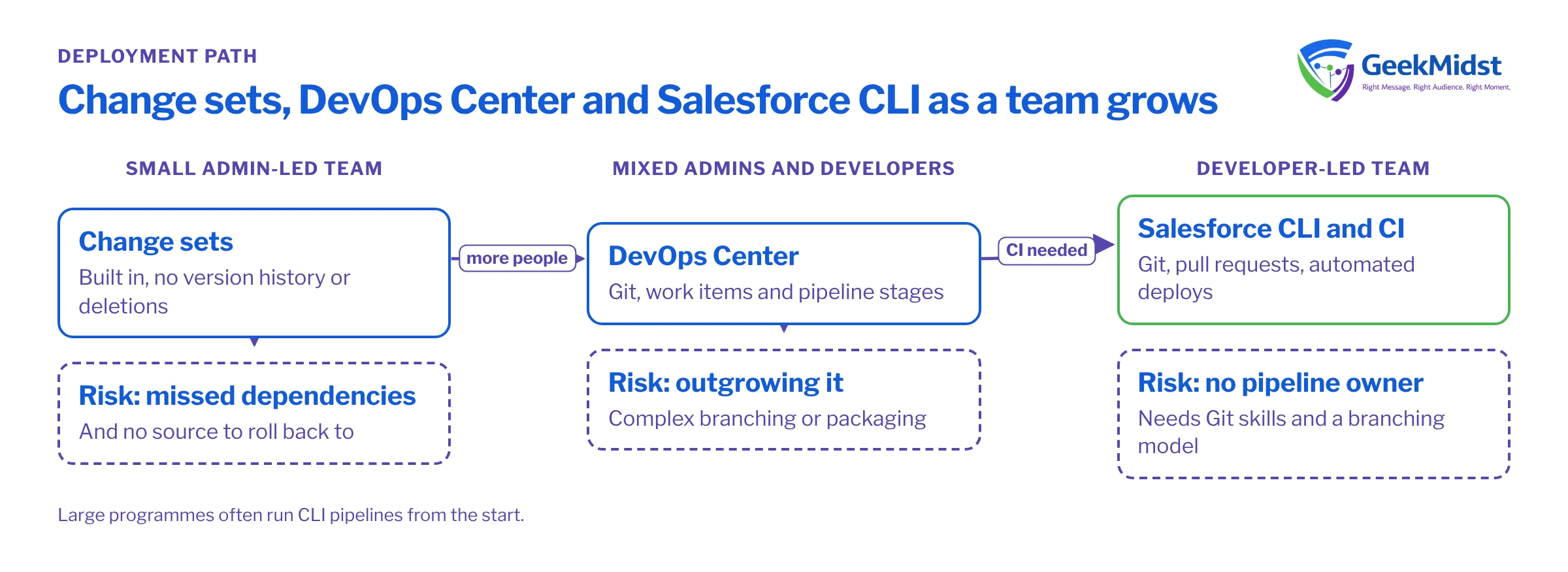
| Who it suits | Small admin-led teams | Developer-led teams | Mixed admin and developer teams |
| Deleting components | Not supported | Destructive changes manifest | Supported within its workflow, check Help |
| Automation and CI | No | Yes | Partial, extendable with CLI |
| Setup effort | None | Highest | Moderate |
| Main risk | Missed dependencies, no rollback source | Pipeline needs an owner | Outgrowing its workflow |
How to choose
It depends mostly on three things:
- Who makes changes. If almost all change is declarative and made by one or two admins, change sets may be enough for now, with discipline. If developers write Apex and LWC, you want source control.
- How often you release and how many people collide. Frequent releases and parallel work streams are where version control pays for itself.
- Who will own the process. A CLI pipeline without an owner decays. DevOps Center lowers the skills bar but still needs someone to manage the pipeline and repository.
A sensible path for many growing teams is change sets today, DevOps Center when a second or third person starts making changes, and CLI-driven CI when developers and automated testing become central. Large programmes often run CLI pipelines from the start.
Moving away from change sets
- Create a baseline. Retrieve the current production metadata into a repository so you have a starting point.
- Agree a branching model. Keep it simple: a main branch reflecting production and short-lived feature branches.
- Pilot with one work stream before moving everyone.
- Handle profiles carefully. Profile metadata is notoriously noisy; prefer permission sets for new access and keep profile changes small.
- Keep validating in a full or partial copy sandbox before production, with the test level your org requires.
- Write down the rules for hotfixes, so an urgent change does not bypass the repository and leave it out of date.
Common mistakes
- Treating a sandbox as the source of truth after adopting Git, then wondering why the repository and orgs disagree.
- Deploying with no tests or the minimum, then failing at the production step.
- Long-lived branches that drift from production and cause painful merges.
- Forgetting data and manual steps (permission set assignments, custom setting values, scheduled jobs) that metadata deployments do not carry.
Related reading
Ready to move beyond change sets?
We can assess how your team builds and releases today and set up a source-driven process, with DevOps Center or the CLI, that fits your people and pace.


