

Send Time Optimization Explained
How Einstein Send Time Optimization works across Marketing Cloud Engagement, Marketing Cloud Next and Account Engagement, and how to test it honestly.

Send Time Optimization (STO) picks the hour each person is most likely to engage, so the same message reaches different people at different times. Salesforce offers a version in Marketing Cloud Engagement, one in Marketing Cloud Next and, per an older guide, one in Account Engagement. They share a name but differ in how you use them and what they need.
This article explains each version, what the documentation says about data and activation, and how to test whether STO is helping you.
STO in Marketing Cloud Engagement
Salesforce describes Einstein STO as a feature that "determines the best time to send emails or push notifications to each of your contacts". It scores each contact's likelihood of engaging in each of the 168 hours of the week.
Where you use it
STO is a Journey Builder activity placed immediately before the email or push activity it controls. You choose a window: "Best Hour in Next 24" or "Best Hour in Next Week". Contacts then wait in the STO activity until their predicted best hour within that window.
Channels
STO covers email and MobilePush. The Trailhead units we checked don't mention SMS, so don't plan on it for SMS.
Data
- The model uses "90 days of engagement data" and around 20 factors, such as sends, opens and day of week.
- Salesforce's activation page says engagement-insight features need "a minimum of 7 days of historical engagement history in your account", or a global-data opt-in.
- Transactional emails, bounces and test sends are excluded from the insights.
- No minimum number of sends is documented in the pages we found. Be wary of anyone quoting one without a source.
Activation
After you activate STO for email or MobilePush, allow up to 72 hours before you use it in Journey Builder. Dashboards exist for both channels. STO is part of the current Trailhead trail "Use Einstein Features in Marketing Cloud", and we found no retirement notice.
Setting up STO in a journey
- 01
Activate
Turn on Send Time Optimization for email or MobilePush in the Einstein settings.
- 02
Wait
Allow up to 72 hours before using it in Journey Builder.
- 03
Place the activity
Add the STO activity immediately before the email or push activity.
- 04
Choose a window
Pick Best Hour in Next 24 or Best Hour in Next Week, based on how time-sensitive the message is.
- 05
Test
Use a Path Optimizer split to compare no STO, STO and random timing.
- 06
Review
Check the STO dashboard and your test results before rolling it out widely.
STO in Marketing Cloud Next
In Marketing Cloud Next, Einstein Send Time Optimization (ESTO) is one of four Einstein email features, alongside Metrics Guard (bot filtering), Engagement Frequency and Engagement Scoring. You enable them per messaging channel in Setup.
The Trailhead page doesn't state data minimums, channels beyond email, or whether Growth or Advanced Edition is required. Confirm those with Salesforce Help or your account team before you promise anything to stakeholders. For how ESTO fits the wider product, see our Marketing Cloud Next architecture guide.
STO in Account Engagement
The source here is Salesforce's Einstein Features in Account Engagement implementation guide from Summer '23. It is official but dated, so check current Help before relying on it.
- Editions. Account Engagement Advanced and Premium, with Salesforce Professional, Enterprise, Performance or Unlimited.
- Email experience. It needs the enhanced email experience; Classic emails aren't supported.
- Training. The model trains for up to 72 hours.
- Data. It "requires 90 days of email engagement metrics for each prospect", and a prospect needs at least one engagement activity in that window. New or inactive prospects get a randomized send time.
- Use. For list emails, choose "Einstein Optimized" and set a window of 3 to 168 hours. Engagement Studio sends feed the training data, but the guide doesn't describe scheduling Engagement Studio sends with STO.
The three versions compared
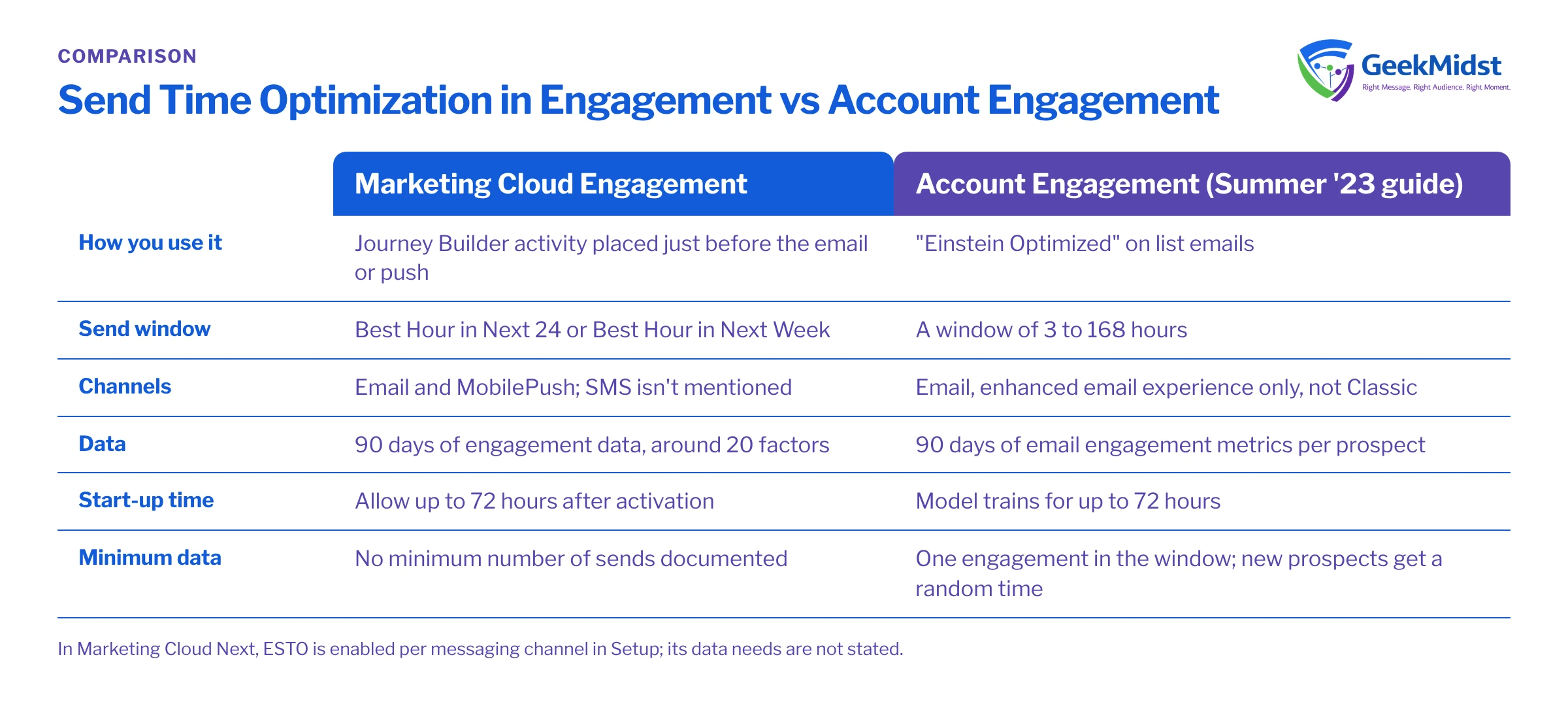
Send Time Optimization by product
| Point | Marketing Cloud Engagement | Marketing Cloud Next | Account Engagement (2023 guide) |
|---|---|---|---|
| How you use it | Journey Builder activity before the send | Enabled per messaging channel in Setup | "Einstein Optimized" on list emails |
| Channels | Email and MobilePush | Email stated; others not stated | |
| Data window | 90 days of engagement data | Not stated | 90 days per prospect, at least one engagement |
| Start-up time | Up to 72 hours after activation | Not stated | Model trains for up to 72 hours |
| Minimum sends | None documented | Not stated | Not stated; new prospects get a random time |
What STO doesn't do
STO moves a send within a window. It doesn't fix:
- Frequency. Too many messages is a separate problem; Engagement Frequency addresses saturation.
- Content. A well-timed weak email is still a weak email.
- Deliverability. If mail lands in spam, timing won't help. Our deliverability audit checklist is a better starting point.
- Time-critical messages. A flash sale ending tonight shouldn't wait up to a week. Use the 24-hour window or skip STO.
STO also interacts with journey timing settings. If you use send windows or throttling, read throttling and send windows in Journey Builder so the two don't fight each other.
Measuring it honestly
The cleanest test in Engagement is the Path Optimizer split Salesforce documents: no STO, STO and random timing. Agree the measure before you start, such as clicks or conversions rather than opens alone, and run the test long enough to cover different days of the week. Our article on measuring marketing automation honestly covers holdouts and common traps.
Questions we hear
Does Send Time Optimization work for SMS?
How much data does STO need?
How long after activation can I use it?
Is Account Engagement STO still the same?
Sources
Test STO properly
We can set up Send Time Optimization in your journeys and design a fair test so you know whether it helps.


